

Connect Hesabiyat to ZATCA Fatoora
A step-by-step guide to connecting Hesabiyat with the Zakat, Tax and Customs Authority (ZATCA) through Fatoora, from device onboarding to checking your connection.
اقرأ الدليل بالعربيةBefore you start
- Have your business’s ZATCA login details and access to the Fatoora portal ready.
- Review your business details, VAT number and e-invoicing settings in Hesabiyat.
- Identify the invoice-generation units you need to onboard, and open Hesabiyat before generating the temporary onboarding code.
This guide covers the connection setup in Hesabiyat. Review the ZATCA requirements applicable to your business. Option names may change as portal interfaces are updated.
The screenshots show the Arabic interface. The instructions below explain the corresponding actions in English.
Sign in to the Fatoora portal
Open the official Fatoora portal and sign in using your business’s ZATCA credentials. You can also reach it through the Fatoora service on the ZATCA website.
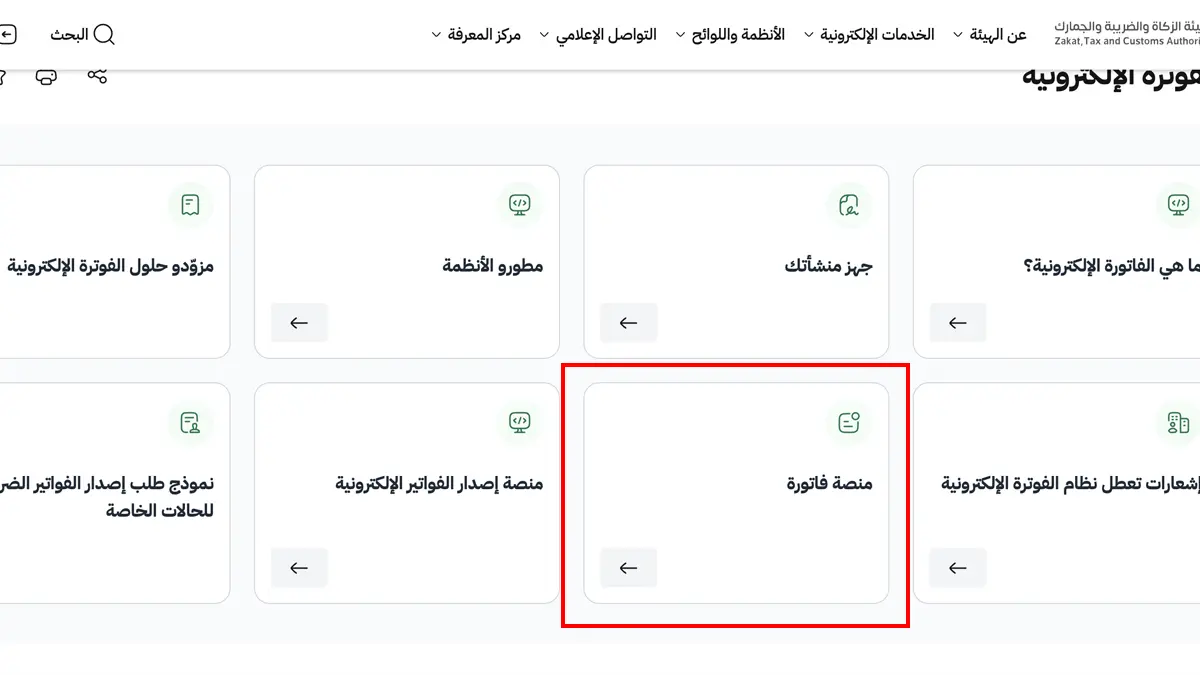
Choose to onboard a new device
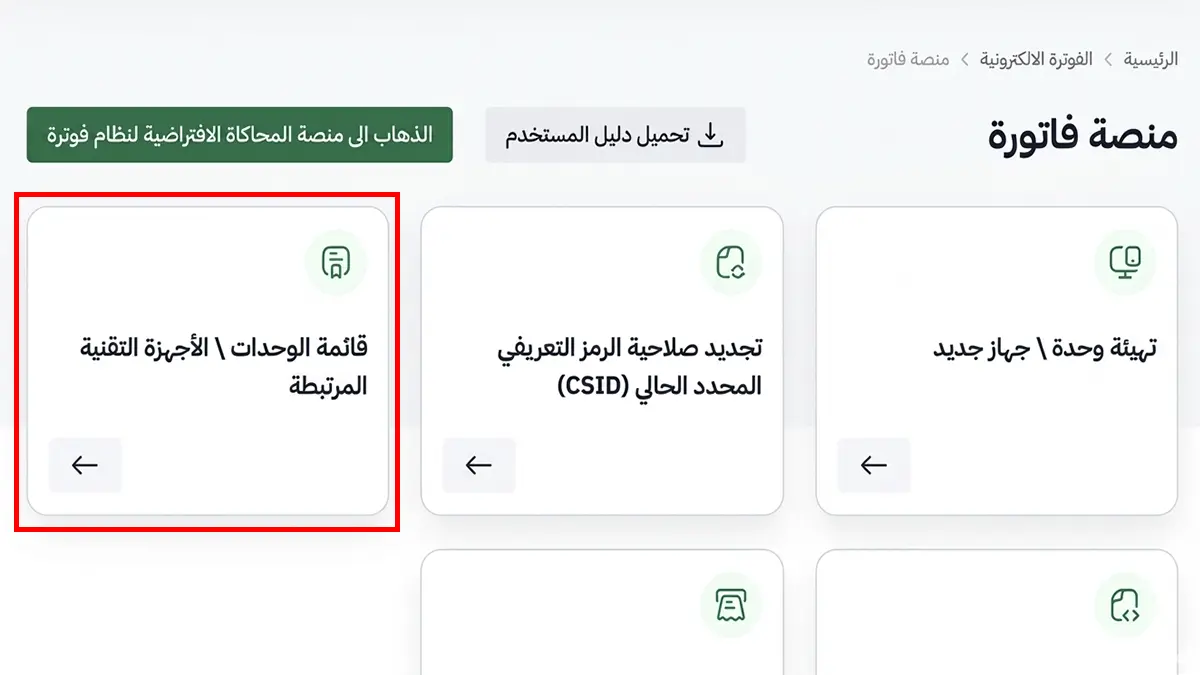
On the Fatoora home page, choose “Onboard new solution unit/device” to begin setting up your invoice-generation unit. Check that you are using the environment required for your business setup; the simulation environment is for testing.
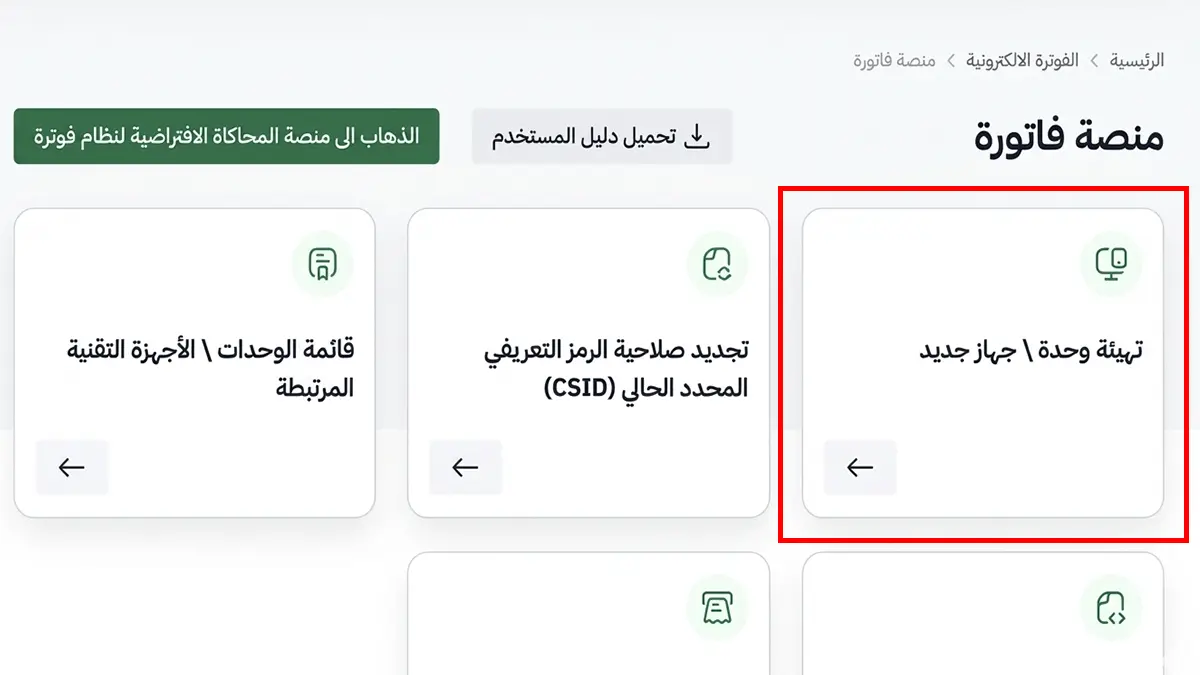
Select the number of OTP codes
Enter the number of invoice-generation units you want to onboard, then generate the onboarding codes. Each unit needs its own code. If you are unsure how many units your setup requires, ask the Hesabiyat team before continuing.
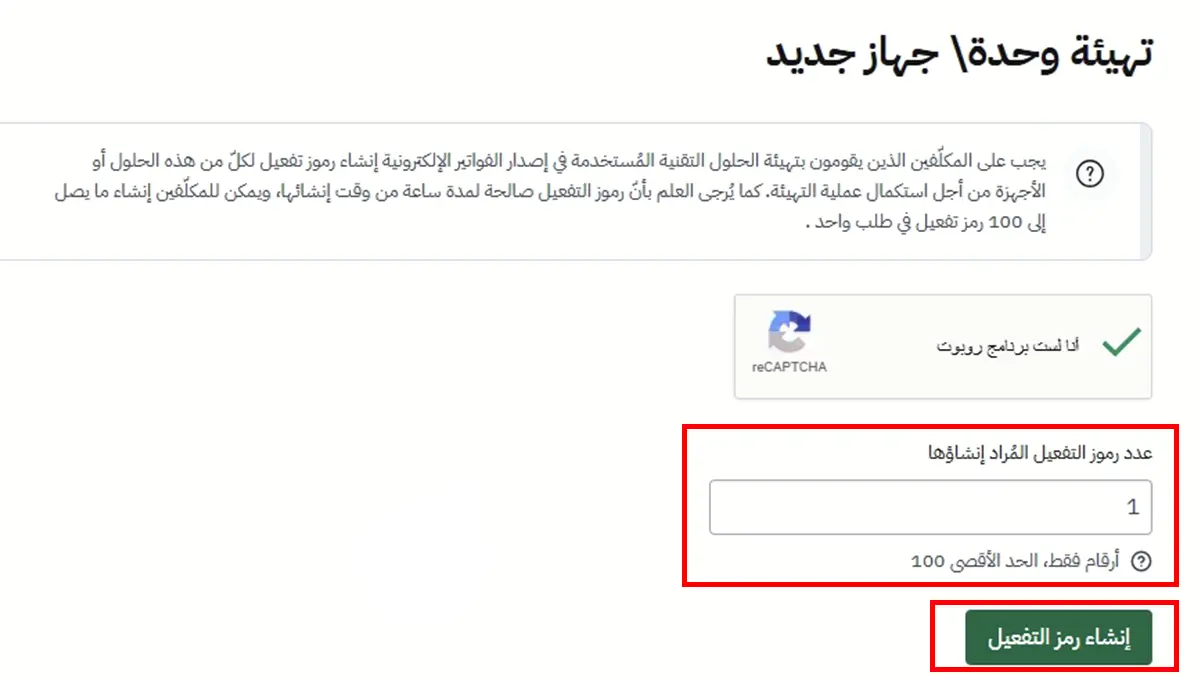
Copy the onboarding OTP
Copy the code generated for the unit you want to connect. In the Hesabiyat screen shown below, this is called the “connection key” (مفتاح الربط). The code is valid for one hour after generation, so continue to Hesabiyat promptly.
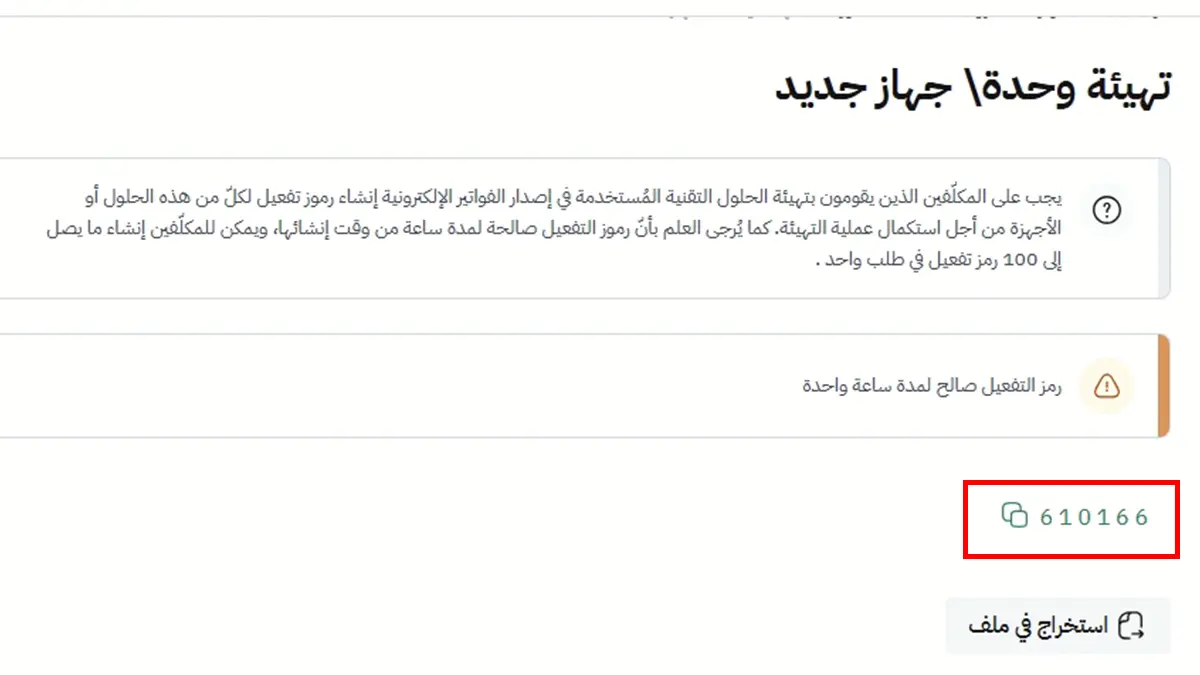
Enter the code in Hesabiyat
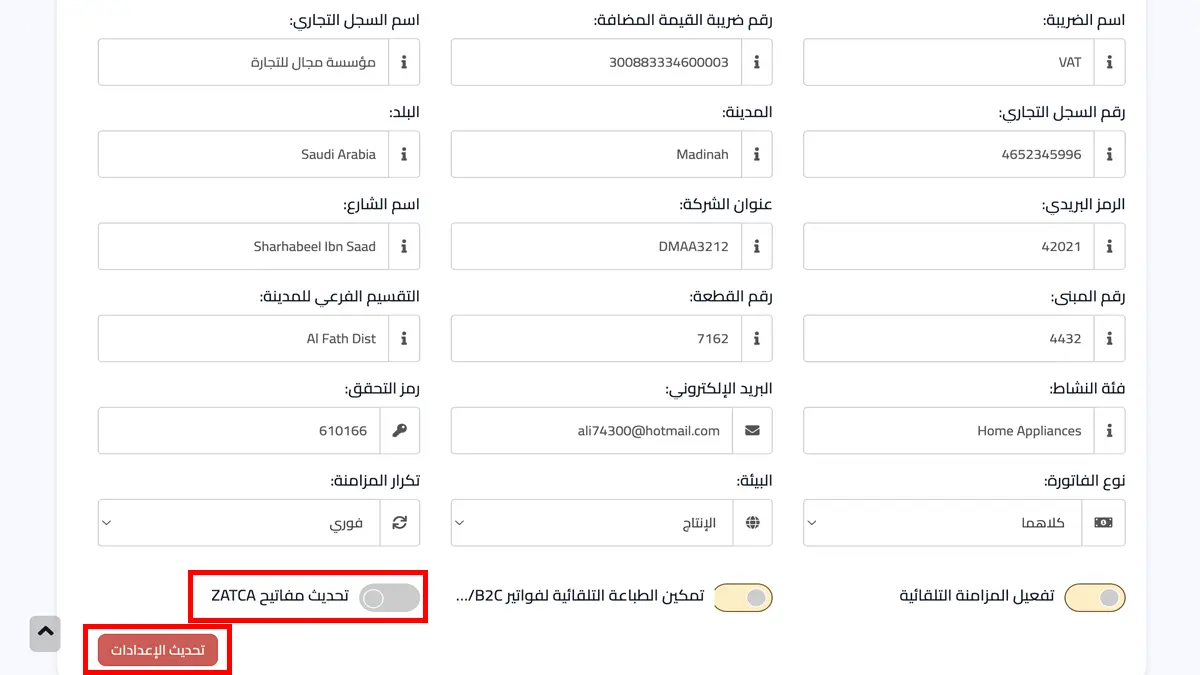
Open the ZATCA integration settings in Hesabiyat and paste the code into the connection-key field (مفتاح الربط). Save the settings, then use “Update ZATCA keys” (تحديث مفاتيح ZATCA), as shown in the screenshot. Wait for the result before retrying.
Check the onboarded device
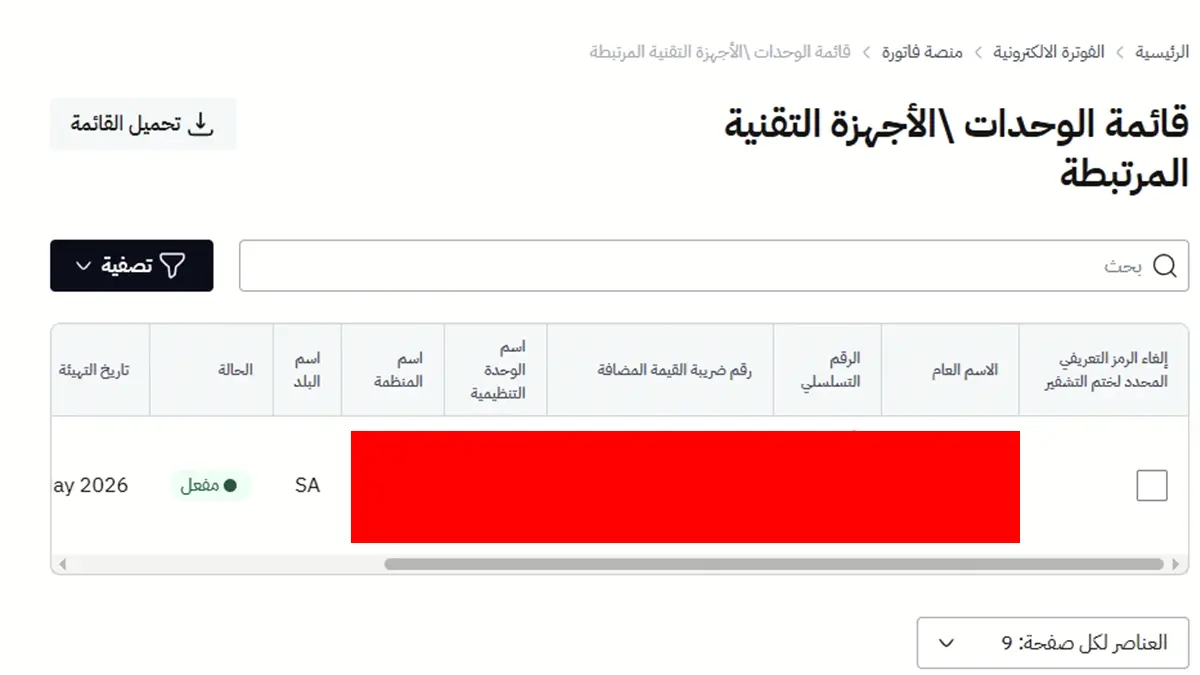
Return to Fatoora and open the list of onboarded solutions or devices. Find the unit you have just configured and review its status and details to confirm that it belongs to the correct business.
Review the connection status
Check the integration status and messages in Hesabiyat to confirm that setup has completed. Once you start using e-invoicing, continue to monitor invoice submission results; successful device onboarding does not replace checking individual invoice outcomes.
ZATCA integration questions
What is the connection key or OTP?
It is a temporary onboarding code generated by Fatoora to connect an invoice-generation unit. Enter it in Hesabiyat during setup. You do not need a new OTP for every invoice.
What if my OTP has expired or is rejected?
Generate a new code in Fatoora and enter it before it expires. Check that the environment, business details and intended unit match your setup. If the error continues, contact support with the error message.
Do I need a code for every branch?
Codes are generated for the invoice-generation units being onboarded. The number of units depends on your business, branches and device configuration. Ask the Hesabiyat team to confirm the right number for your setup.
How do I confirm that the connection worked?
Check the unit and its status in Fatoora, and confirm that setup completed in Hesabiyat. After onboarding, also monitor the submission status and results of invoices in the system.
Need a hand with the connection?
The Hesabiyat team can help you review your settings and understand messages shown during setup.